KOT printing for restaurants —
set up your KOT printer in minutes.
Tap KOT on your Windows PC or Android phone and the kitchen order ticket prints on a 58mm or 80mm thermal printer — over USB, LAN/Wi-Fi or Bluetooth. No special KOT machine needed, and it keeps printing when the internet is down.
The struggle
Sound familiar?
Handwritten KOTs
Slips written in a rush get misread, and a wrong dish costs you food, time and a happy customer.
Repeat orders printed twice
When a table adds a roti, the kitchen should see one roti — not the whole order again.
Internet down, kitchen stuck
If your KOTs depend on the cloud, a router problem at peak time stops the kitchen too.
What is a KOT?
A KOT (Kitchen Order Ticket) is the slip that carries an order from the counter or table to the kitchen. A billzova KOT shows your restaurant name, a KOT number with date and time, the table number in large letters (or the token number for takeaway), each item with its quantity, and any notes under the dish. It has no prices — the customer gets a separate GST bill from the same order when they pay.
KOT printer vs “KOT machine”
When people ask for a KOT machine, they usually mean a thermal printer — sometimes bundled with a small billing device. You don't need a special machine for billzova. The software runs on a Windows PC or laptop you already have, or on an Android phone or tablet, and sends the KOT to an ordinary 58mm or 80mm thermal printer. That keeps your hardware cheap to replace: if the printer fails, any compatible thermal printer works.
Compatibility
Which KOT printers work with billzova?
Any standard 58mm or 80mm thermal receipt printer. How it connects depends on the device you bill from.
| Billing device | Print method | Printer connection | Good to know |
|---|---|---|---|
| Windows desktop app | Silent printer | USB (or any printer installed in Windows) | Prints straight away, no dialog. Best for a fixed counter. |
| Windows desktop app | Network printer (IP) | LAN / Wi-Fi thermal printer | Sends the ticket to the printer’s IP address (port 9100 by default). |
| Windows app or web POS | Print dialog | USB, Wi-Fi or Bluetooth — whatever Windows / the browser can print to | Asks every time. Useful while you test a new printer. |
| Android app | Bluetooth | Bluetooth thermal printer (paired) | 58mm by default; switch to 80mm in settings. |
Not sure which to buy? Read which thermal printer to buy and the paper roll guide. We don't list printer prices here because they change often — compare current prices with your dealer.
Setup
How to set up a KOT printer
- 1
Pick a thermal printer
58mm suits most small counters; 80mm gives a wider, easier-to-read ticket. Choose USB for a PC at a fixed counter, LAN/Wi-Fi if the printer sits away from the PC, or Bluetooth for an Android phone. Our printer buying guide and paper roll guide explain the choices.
- 2
Connect it
USB: plug it into the PC and install it once as a Windows printer. LAN/Wi-Fi: note the printer’s IP address (most print it on a self-test slip). Bluetooth: turn the printer on and pair it with your phone or tablet.
- 3
Choose it in billzova
On Windows, open Settings → Printing and pick Silent printer (then the printer name) or Network printer (IP) (then the IP). Set the paper size to 58mm or 80mm. On Android, open Settings → Receipt Printer, pick the printer and choose 58mm or 80mm.
- 4
Print a test KOT
Add an item to a table and tap KOT. The kitchen slip prints with the KOT number, time, table in large letters, items, quantities and notes. If the text wraps oddly, check the paper size matches your roll.
- 5
Add a kitchen screen (optional)
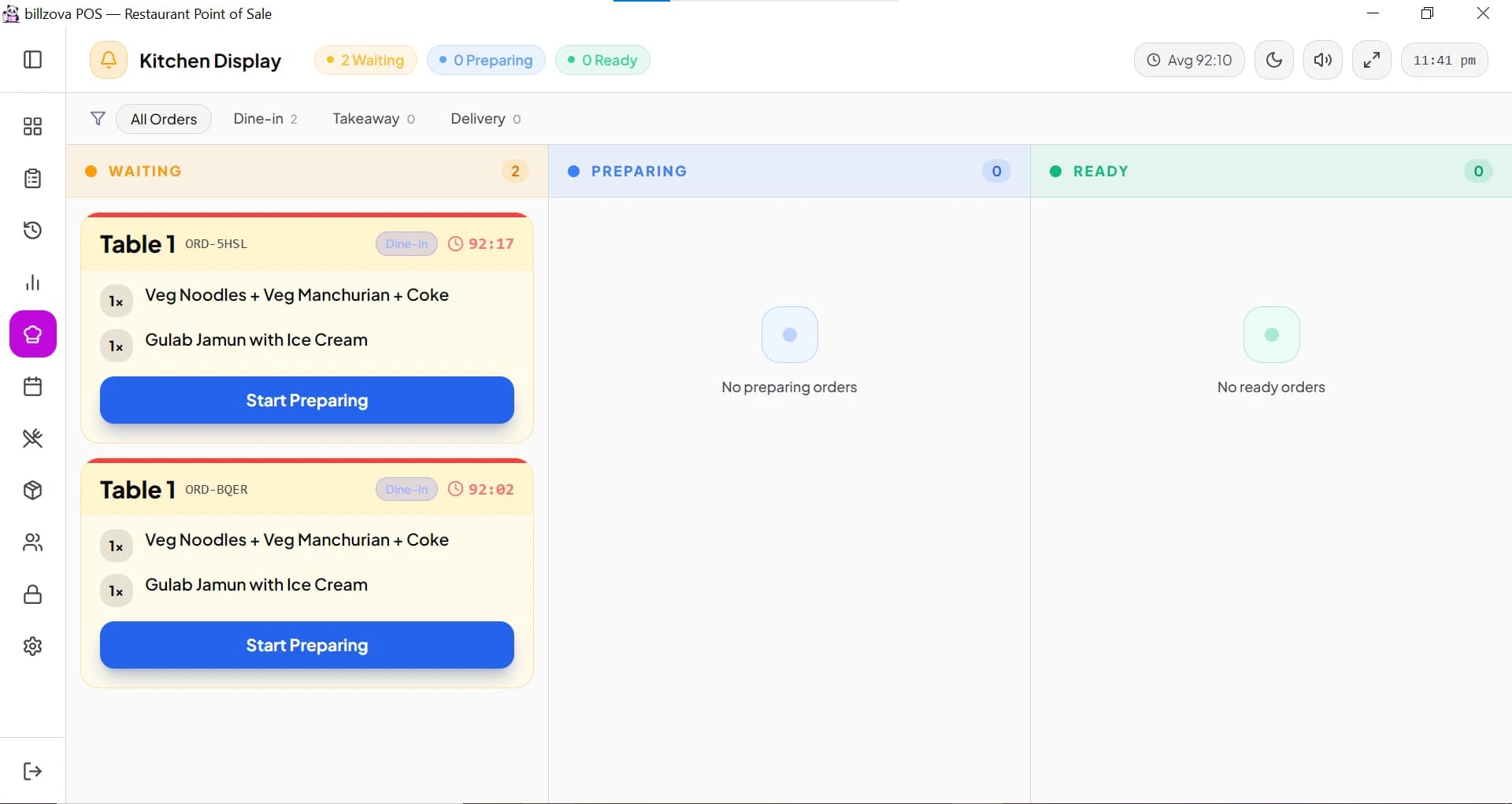
Open the kitchen display on a PC, Android tablet or browser in the kitchen. Every KOT appears there too, so you can run paper, screen, or both.
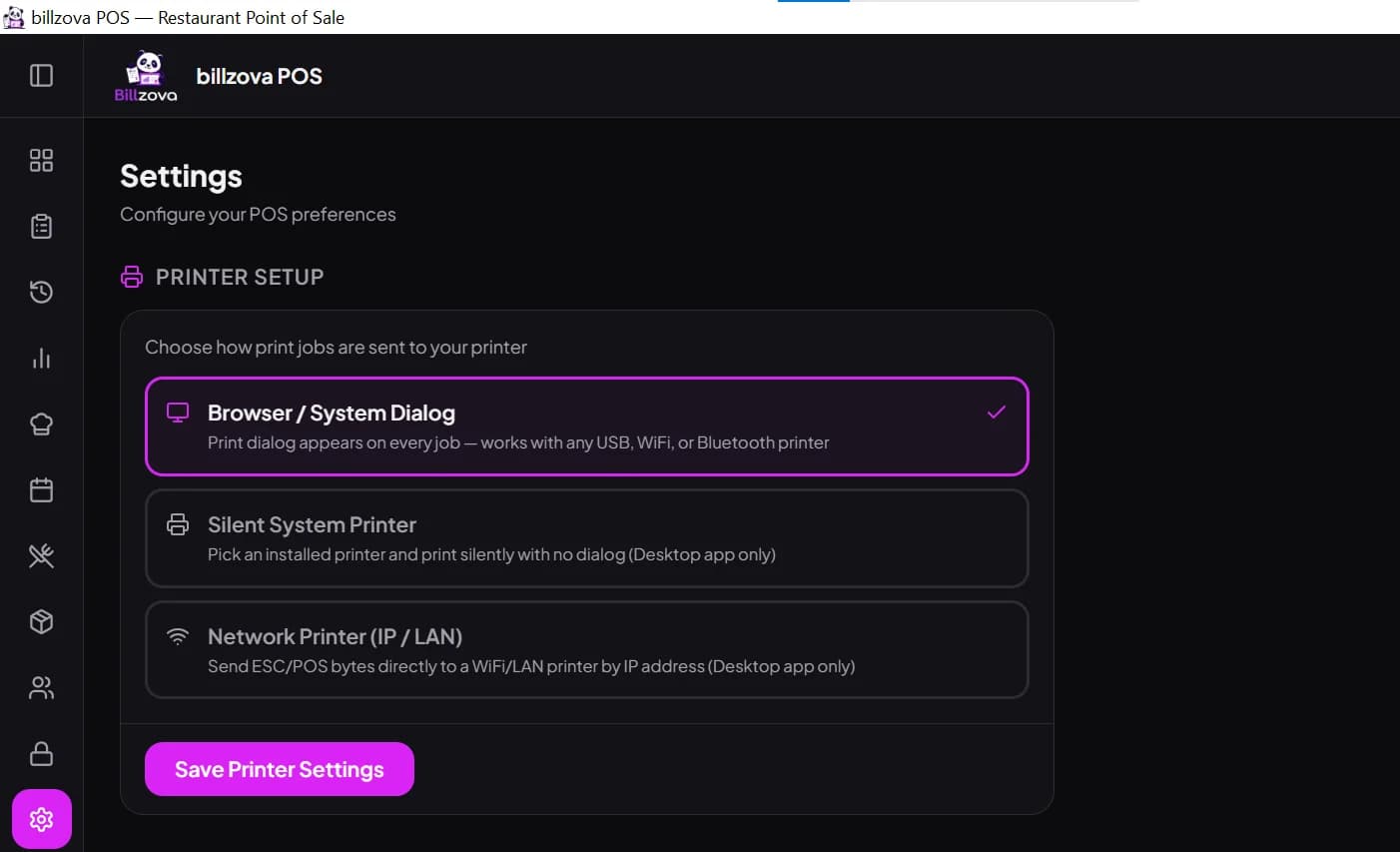
Printer setup in the billzova Windows app
What billzova KOT printing doesn't do
- • No station-wise or course-wise routing. billzova doesn't send tandoor items to one printer and Chinese to another — each KOT goes out as one ticket.
- • One printer per device. A billing device uses the same printer for bills and KOTs.
- • No Swiggy / Zomato orders. Aggregator orders aren't pulled into billzova. QR table orders and orders from your own website are.
If those limits are fine for your kitchen, you can be printing KOTs today: download the Windows app or the Android app — 30-day free trial, then ₹399/month.
Print KOTs to the thermal printer you already have
billzova prints to standard 58mm and 80mm thermal printers. On Windows, choose a silent USB printer, a network printer by IP, or the print dialog. On Android, pair a Bluetooth printer.
- Silent printing to an installed USB printer (Windows)
- LAN / Wi-Fi printers by IP address (Windows)
- Bluetooth thermal printers (Android app)
- Print dialog for any other printer
- Prints offline from the Windows app
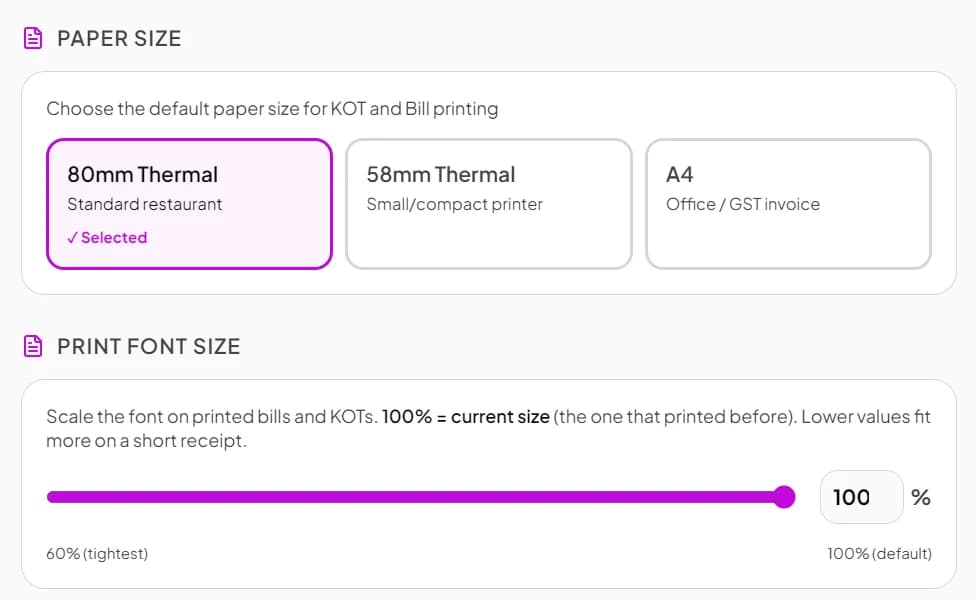
58mm or 80mm — set once, every KOT fits
Pick your roll width and the KOT is laid out to fit it, so long dish names wrap cleanly instead of being cut. The KOT keeps a large, readable size for the kitchen.
- 80mm and 58mm thermal layouts
- Table or token number in large letters
- Long item names wrap, never cut off
- Notes printed under each dish
- No prices on the KOT — that’s the bill’s job
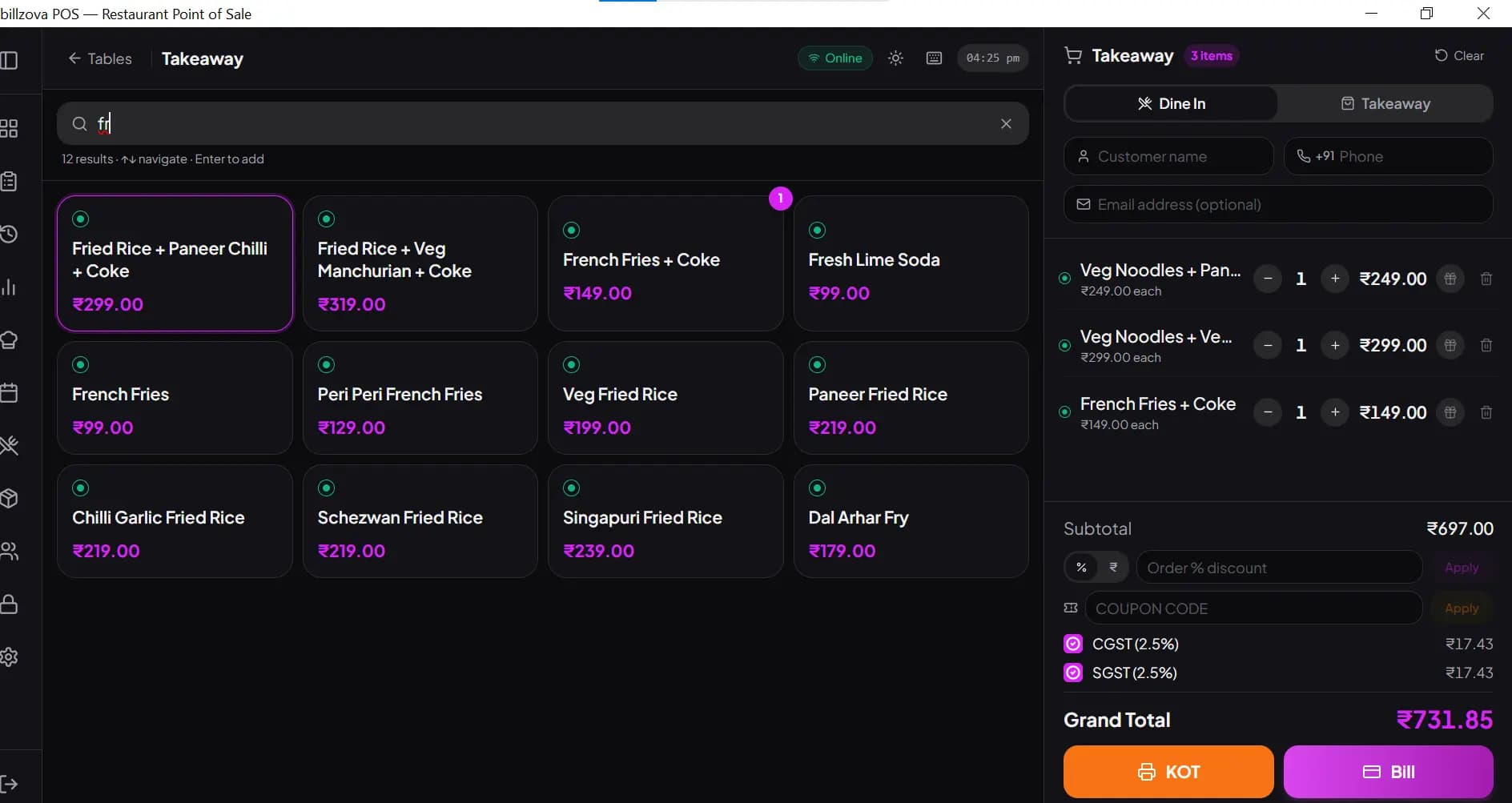
Only new items go to the kitchen
When a table orders more, tap KOT again and only the items not yet sent are printed. KOTs are numbered from 1 each day on each device, so the kitchen sees a simple running count.
- Repeat KOTs print only the new items
- Daily KOT numbers: 1, 2, 3…
- Retry button if a KOT fails to print
- Reprint KOT from the order on Android
- Optional print password to stop unapproved KOTs
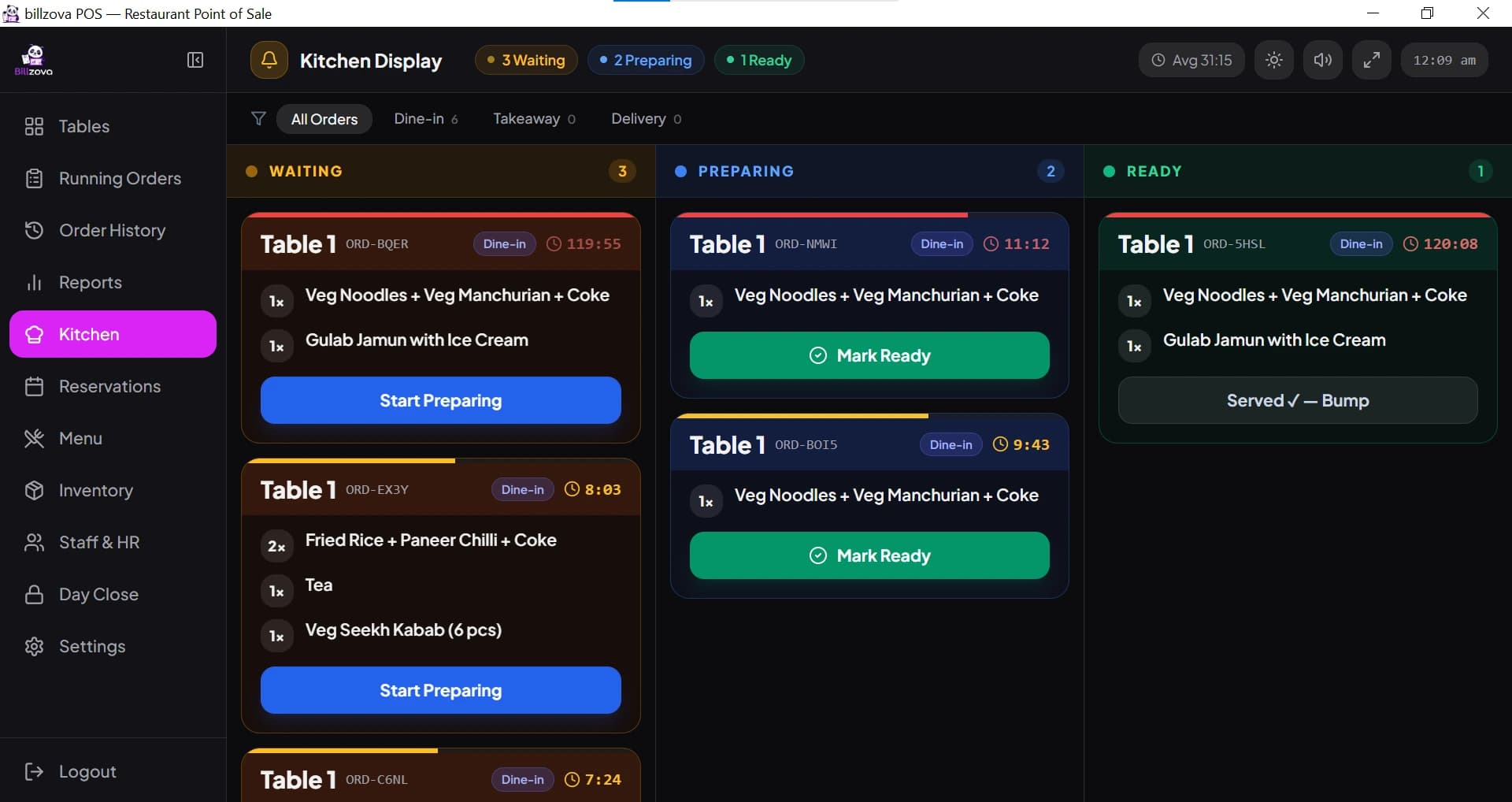
Prefer a screen? Use the kitchen display
Every KOT also appears on the kitchen display — a KOT screen with Waiting, Preparing and Ready columns and a timer on each ticket. Run it with the printer or instead of it.
- Waiting → Preparing → Ready
- Timer turns amber after 5 min, red after 10
- Filter dine-in / takeaway / delivery
- Runs on a PC, Android tablet or browser
- Included in the same plan
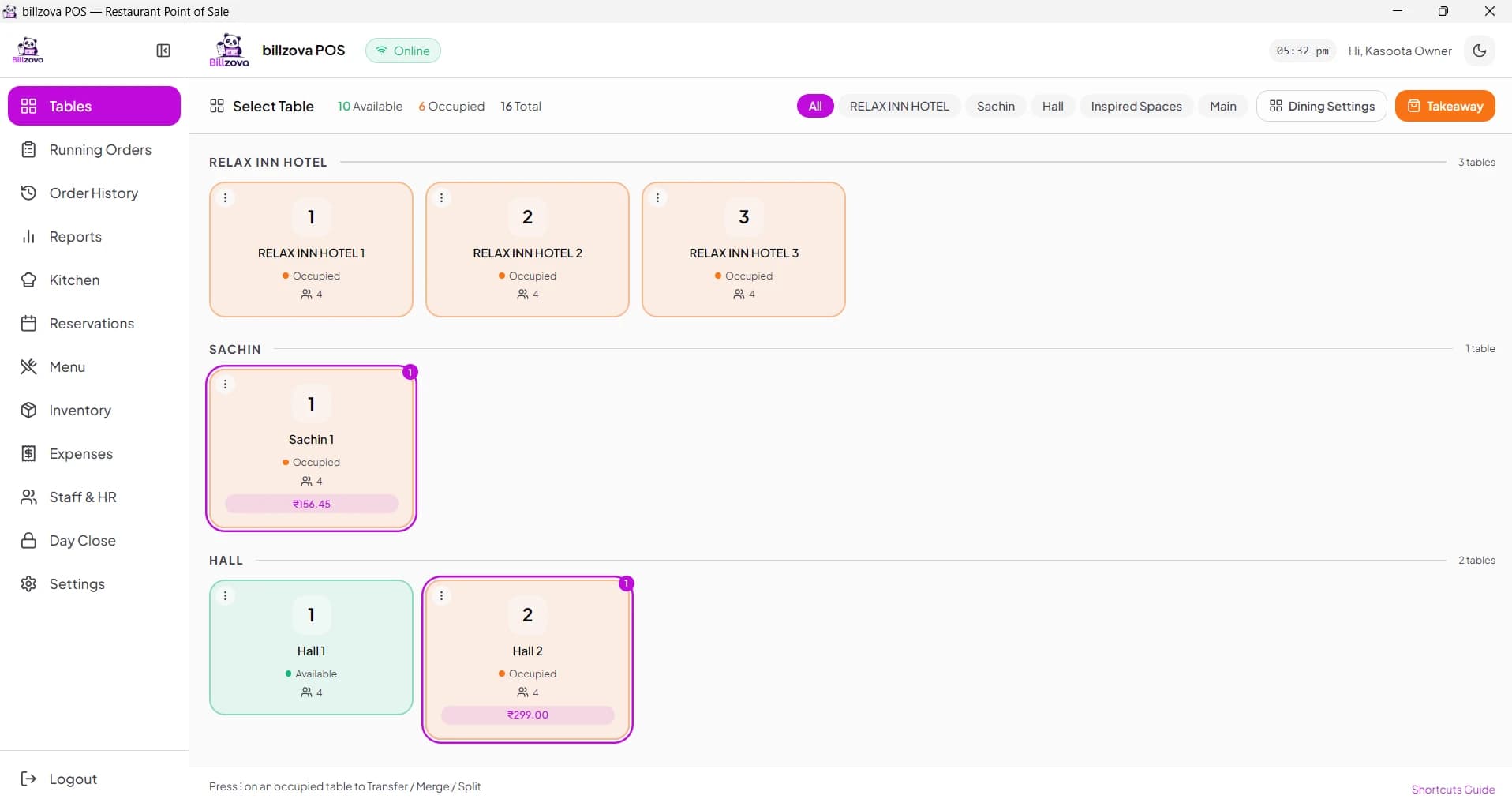
In the product
See every screen
Real product screenshots — not stock illustrations.
Compared
Handwritten KOTs vs billzova KOT printing
Handwritten KOTs
- Hard to read in a rush
- Repeat orders rewritten by hand
- No numbering or time on the slip
- Lost slip = re-ask the customer
- No link between KOT and the bill
billzova KOT printing
- Clear printed slip, table in large letters
- Only new items on add-on KOTs
- KOT number, date and time on every slip
- Retry / reprint when needed
- Same order becomes the GST bill
FAQ
KOT printing — frequently asked questions
What is a KOT in a restaurant?▾
Do I need a special “KOT machine”?▾
Which KOT printers work with billzova?▾
How much does a KOT printer cost?▾
Can billzova print KOTs to the kitchen and bills at the counter on different printers?▾
What is a KOT screen?▾
What happens if I add items after the first KOT?▾
Does KOT printing work without internet?▾
Can I reprint a KOT?▾
Start billing in 10 minutes.
Full access to every feature. Cancel anytime. ₹399/month after your free trial.