Every website order, handled
right inside your POS.
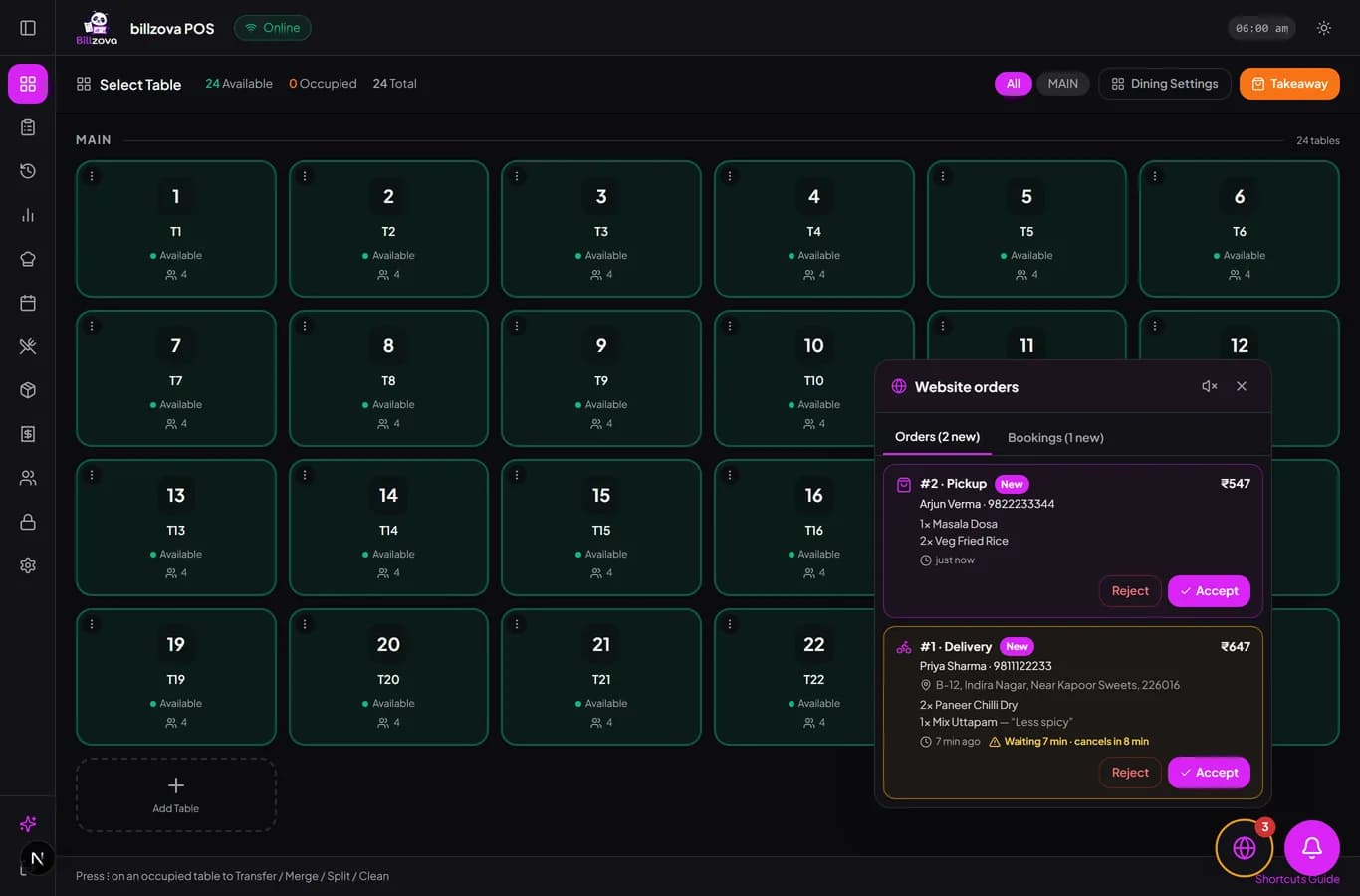
No second tablet, no missed call, no order sitting unseen. Website orders and table bookings ring on every Billzova POS screen — your staff accept, cook, hand over and bill them in the same flow they already use for takeaway.
The struggle
Sound familiar?
Orders that nobody saw
An email or a WhatsApp message is easy to miss when the counter is busy. The customer waits, calls, and orders somewhere else next time.
Typing orders in twice
Reading an order off one screen and punching it into the billing system wastes time and invites mistakes in items, notes and amounts.
Customers left guessing
Was it accepted? Why was it cancelled? Who is bringing it? Without answers, customers call the restaurant at its busiest moment.
Step by step
What happens to a website order during a shift
Here is one order, start to finish, the way your counter staff will see it. Nothing here needs a separate device or a new habit — it happens on the POS screen they already have open.
- 1
The order rings
A customer orders from your website. Within seconds the globe button on every logged-in POS — web, Windows or Android — shows a red badge and starts ringing. It does not matter which screen staff are on: billing a table, checking running orders or looking at reports.
- 2
Someone checks it
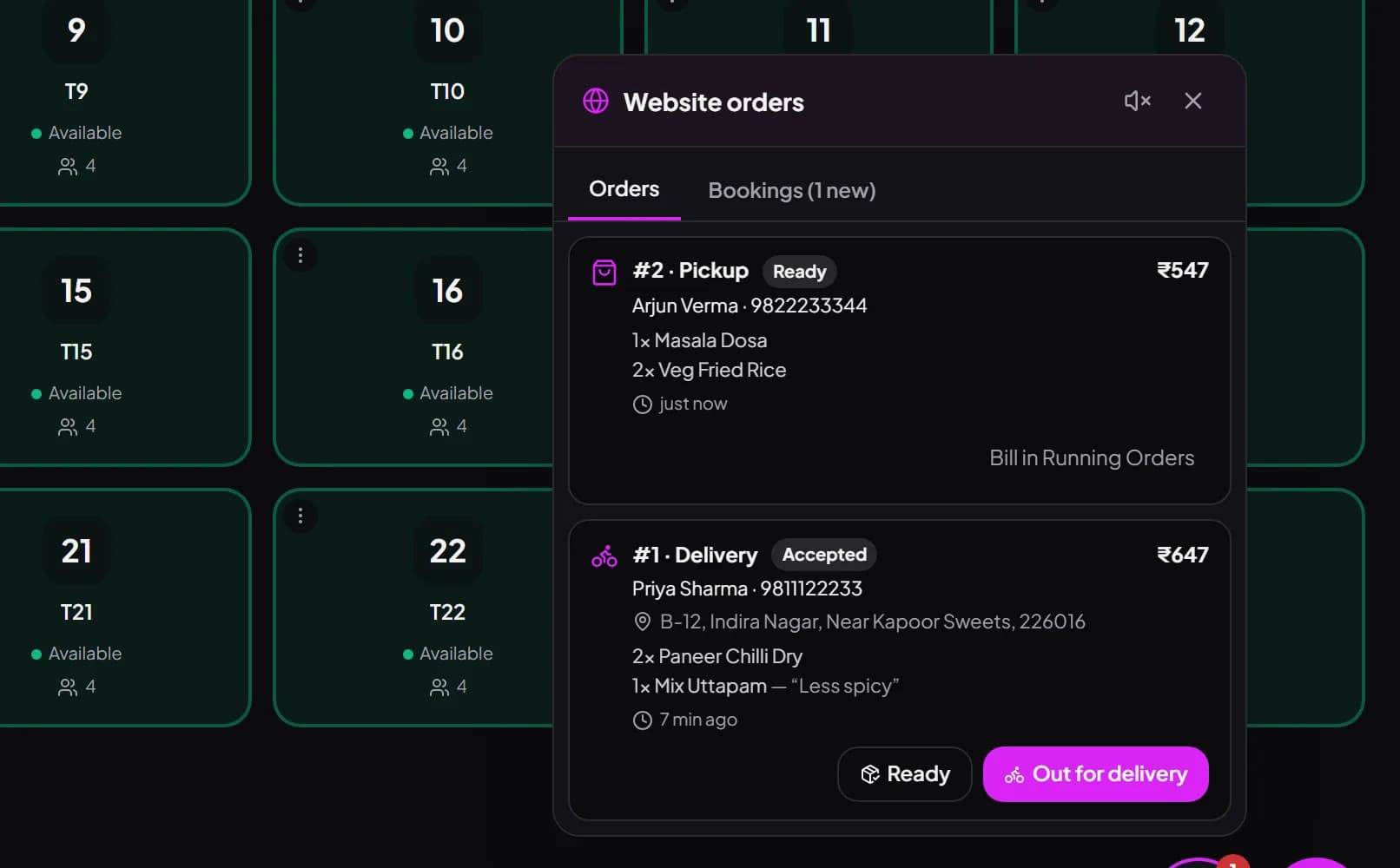
Tapping the button opens the inbox. Each order card shows pickup or delivery, the customer's name and phone number, the delivery address with landmark and pincode, every item with add-ons, and any note the customer typed — "less spicy", "no onion", "ring the bell twice".
- 3
Accept — or reject with a reason
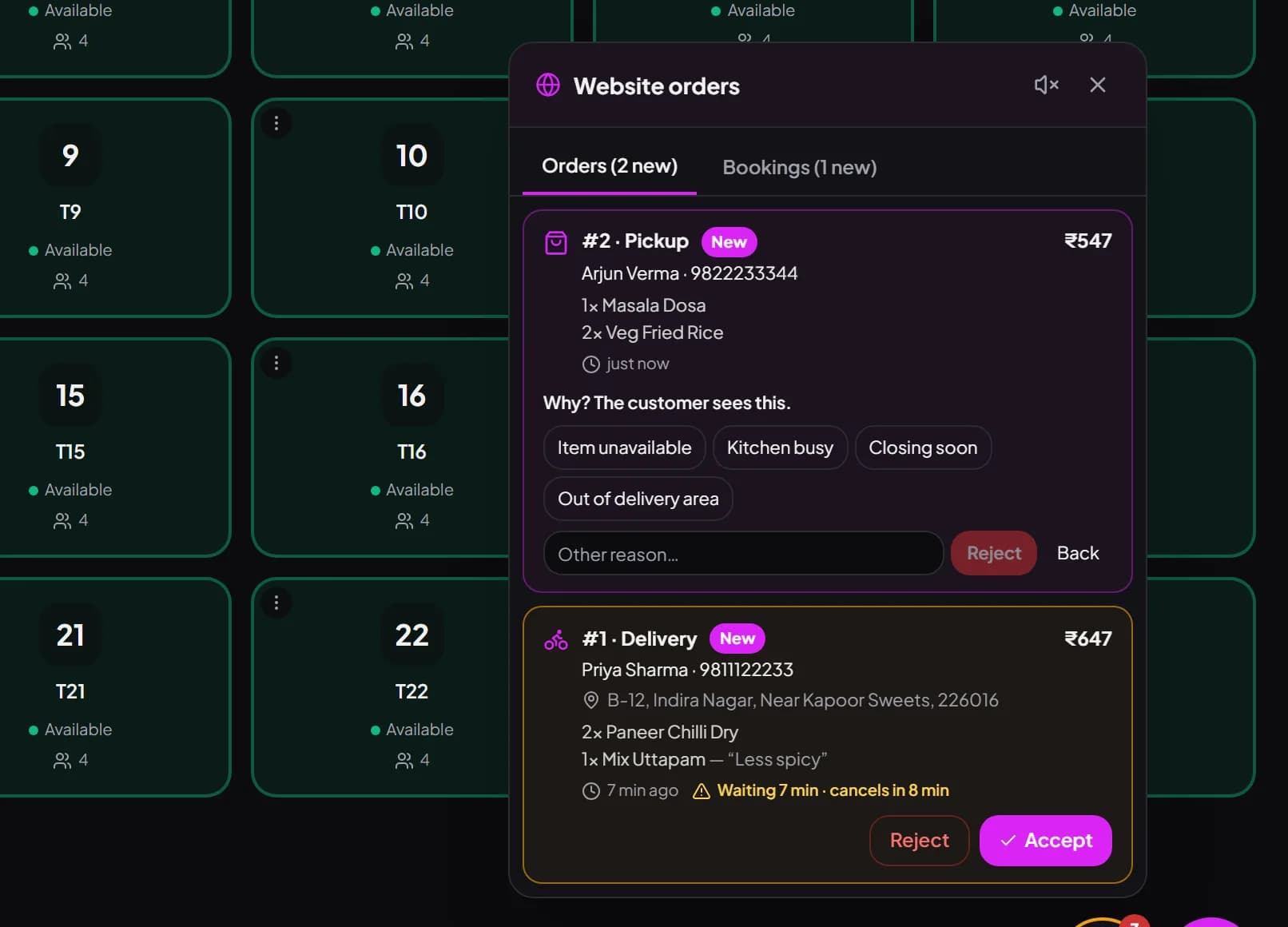
One tap accepts it and the customer's status changes straight away. If you cannot make it, tap Reject and choose a reason: item unavailable, kitchen busy, closing soon or out of delivery area — or type your own. The customer sees the reason, not a silent cancellation.
- 4
Cook it like any takeaway
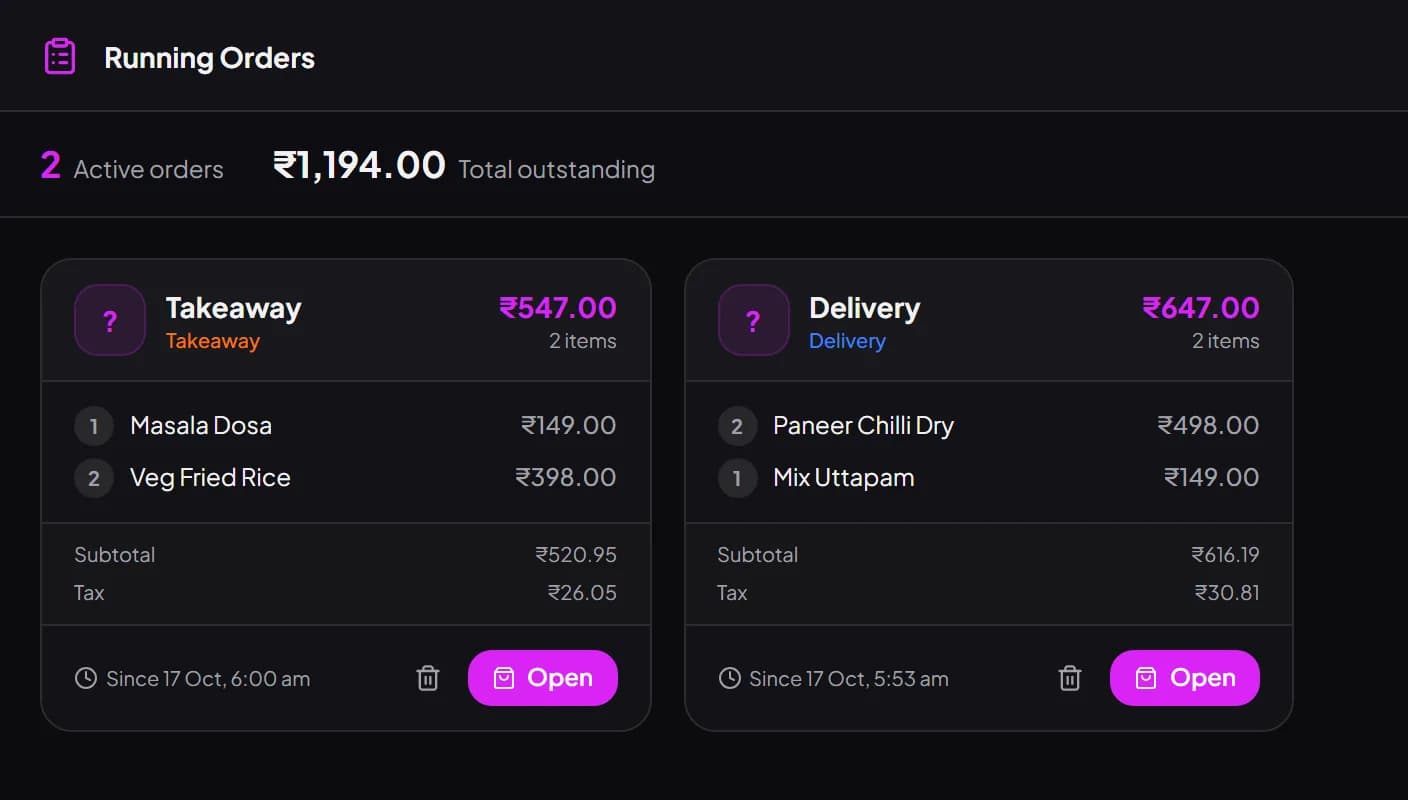
The accepted order is already a normal order in your POS. Open it from Running Orders to print the KOT for the kitchen — no retyping, so the items and notes the kitchen reads are exactly what the customer chose.
- 5
Mark it ready, hand it over
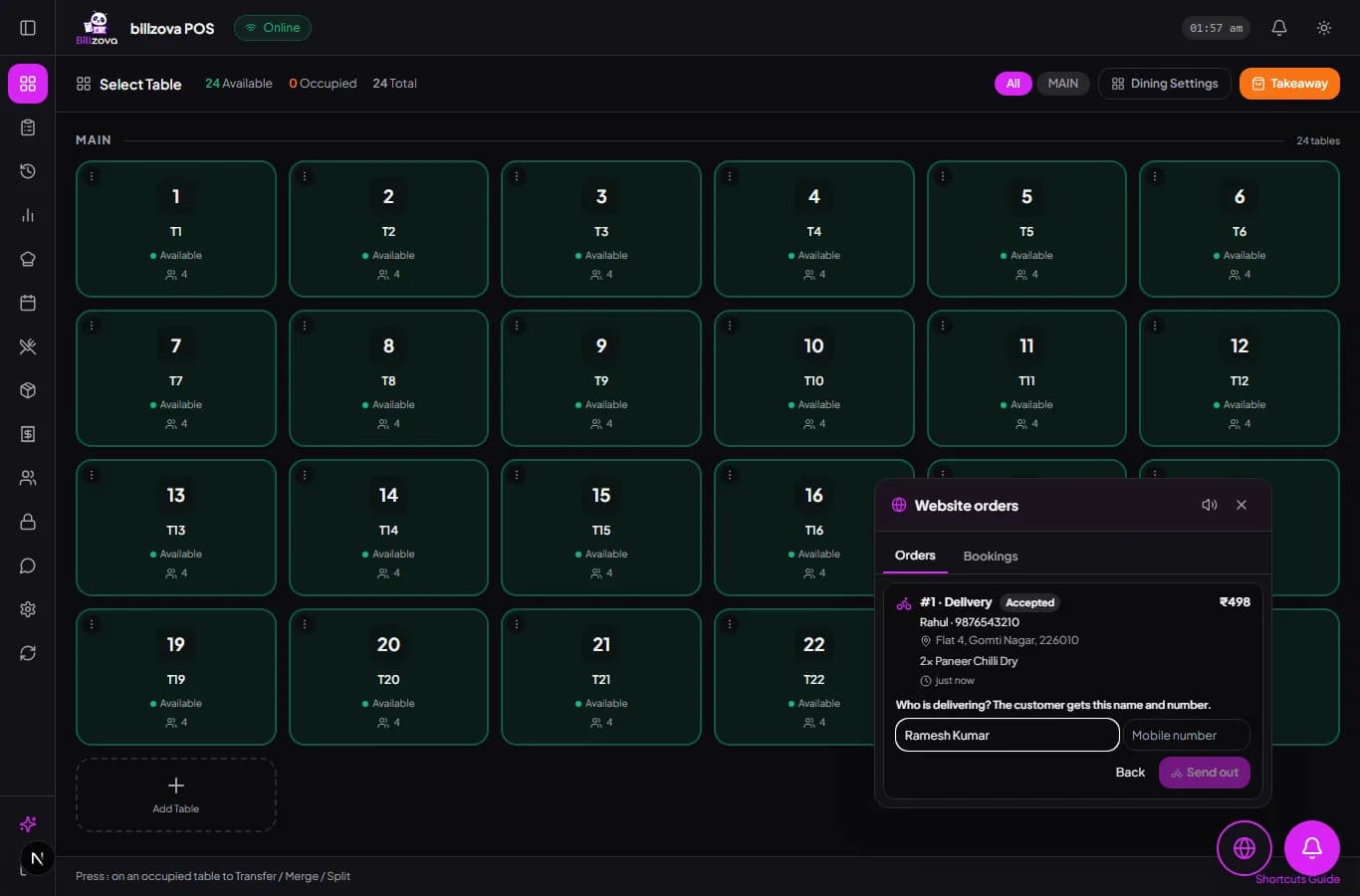
Tap Ready when it is packed. For pickup, bill it at the counter when the customer arrives. For delivery, tap Out for delivery, enter who is taking it and their mobile number, and the customer gets that name and number.
- 6
Close it
Tap Delivered when the rider is back, and settle the bill. The sale appears in your reports, GST summary and day close alongside counter and table sales.
No order left waiting
Reminders, auto-cancel and auto-accept — you choose the rules
A website order that nobody answers is worse than no website at all: the customer has already decided to eat your food and is now watching a screen that says “waiting”. So the inbox is built around one rule — an order is always either answered quickly or closed honestly.
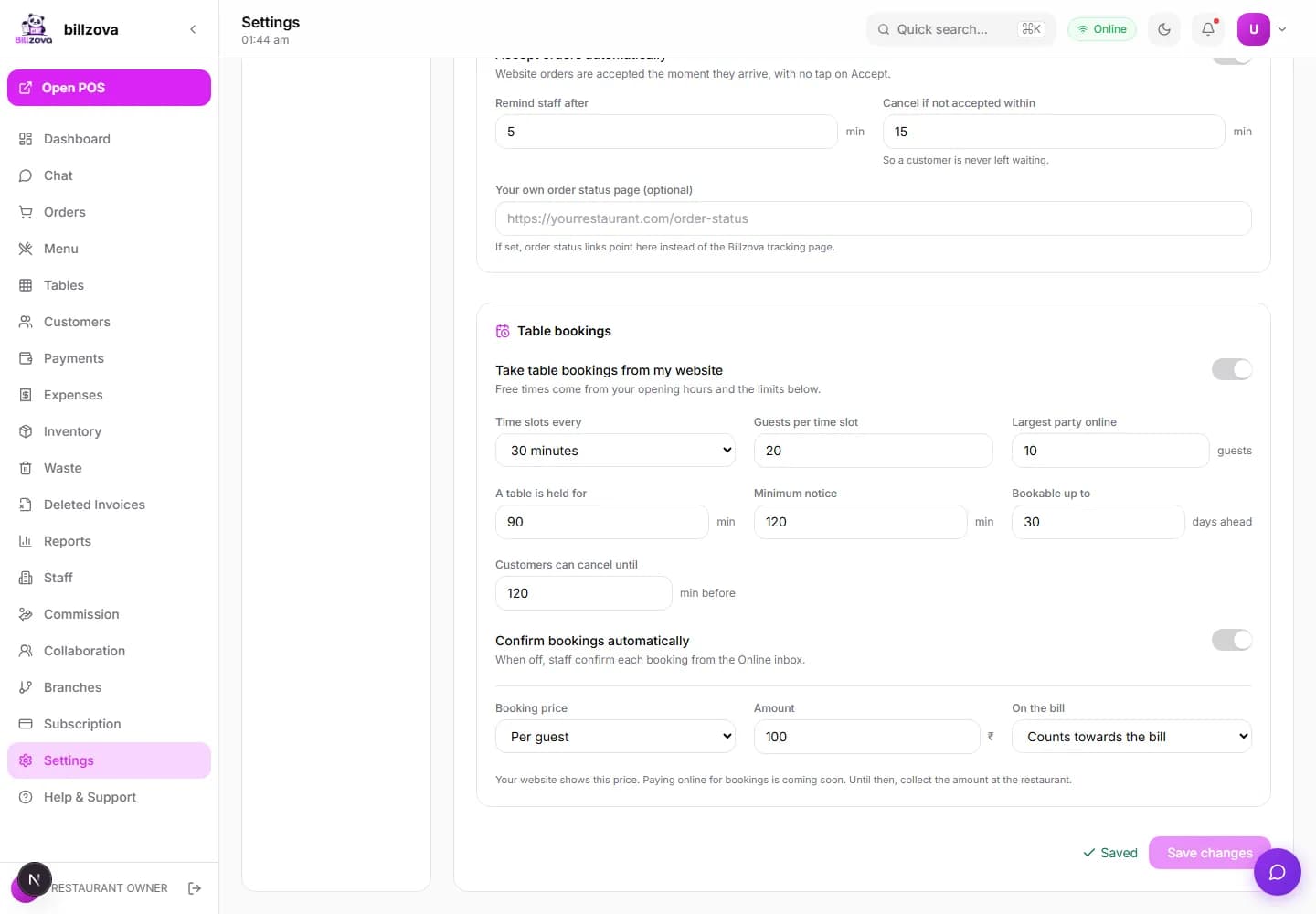
Reminder time. While an order waits, the chime repeats. Once it has waited longer than your reminder time — five minutes unless you change it — the globe button gets an amber ring, the chime becomes faster and louder, and the order card shows “Waiting 7 min · cancels in 8 min”. Nobody has to remember to check.
Auto-cancel time. If an order is still not accepted when the auto-cancel time is reached — fifteen minutes by default — it is cancelled automatically and the customer is told it was not accepted in time. They can order again or call you, instead of waiting forever for food that is not coming.
Auto-accept. Restaurants that are confident in their menu and stock can switch on auto-accept, and website orders are accepted the moment they arrive. We suggest starting with manual accept for the first few weeks: a person checking each order catches the out-of-stock dish or the address you do not deliver to.
The reminder must come before the auto-cancel, and only the owner or a manager can change these settings — counter staff simply follow them.
Busy evenings
A rush-hour playbook for website orders
Friday at 8:30 pm, every table full, the delivery apps pinging and now your own website too. A few simple habits keep website orders from becoming the thing that breaks the evening:
- Name one person as the inbox owner per shift. Every POS rings, but one person — usually the cashier — is responsible for accepting within a minute or two. Others only step in when the button turns amber.
- Use the reject reasons honestly. “Kitchen busy” is a perfectly good answer. A customer who is told why will usually order again another day; one who waits fifteen minutes and gets nothing usually does not.
- Pause website orders before the kitchen drowns. An owner or manager can switch website orders off in the dashboard for an hour and back on later. Customers see that you are not taking orders right now — far better than a late, cold delivery.
- Push pickup during peaks. Pickup needs no rider. If your delivery staff are stretched, consider limiting delivery to nearby pincodes and letting further customers pick up.
- Keep the rider details current. The POS remembers the last delivery person, which is handy — but change it when someone else goes out, because the customer will call that number.
- Mute only the device that does not need sound. Each POS has its own mute switch for website orders. Keep at least the counter device ringing.
Owner controls
What the owner sets once in the dashboard
Everything about how website orders behave lives on one settings page in the Billzova dashboard, under Online orders & bookings. You set it once; your staff never need to touch it.
| Setting | What it does |
|---|---|
| Taking website orders | The main switch. Turn it off to pause orders at any time. |
| Pickup / delivery | Offer pickup only, delivery only, or both. |
| Delivery pincodes | The pincodes you deliver to. Leave empty to deliver anywhere. |
| Minimum order | The smallest order you will accept from the website. |
| Preparation time | How long a typical order takes, so customers know when to expect it. |
| Ways to pay | Pay at counter and cash on delivery today; online payment is coming soon. |
| Reminder time | When a waiting order turns amber and rings faster (default 5 min). |
| Auto-cancel time | When an unanswered order is cancelled with a message (default 15 min). |
| Auto-accept | Accept every website order the moment it arrives. |
Two safety rules work on their own. Your opening hours, set in the dashboard, decide when the website takes orders — outside them, customers see when you open next. And an order nobody accepts in time is cancelled automatically, with the customer told, so nobody turns up for food that was never made. You can also choose to take orders only while a staff device is online.
Getting the team ready
Training your staff takes ten minutes
If your team can bill a takeaway in Billzova, they can handle a website order. Walk them through it once before you go live:
- Show them the globe button and its sound, and how it differs from the QR table bell.
- Place a test order yourself from the website and let the newest staff member accept it.
- Reject a second test order with “Item unavailable” so they see what the customer sees.
- Open the accepted order from Running Orders, print the KOT, and bill it.
- For delivery, practise Out for delivery with a real rider's name and number, then Delivered.
Kitchen-staff logins do not see the inbox at all — accepting orders stays with the counter, the manager and the owner, the people who can also speak to the customer if something is wrong.
Table bookings arrive in the same place
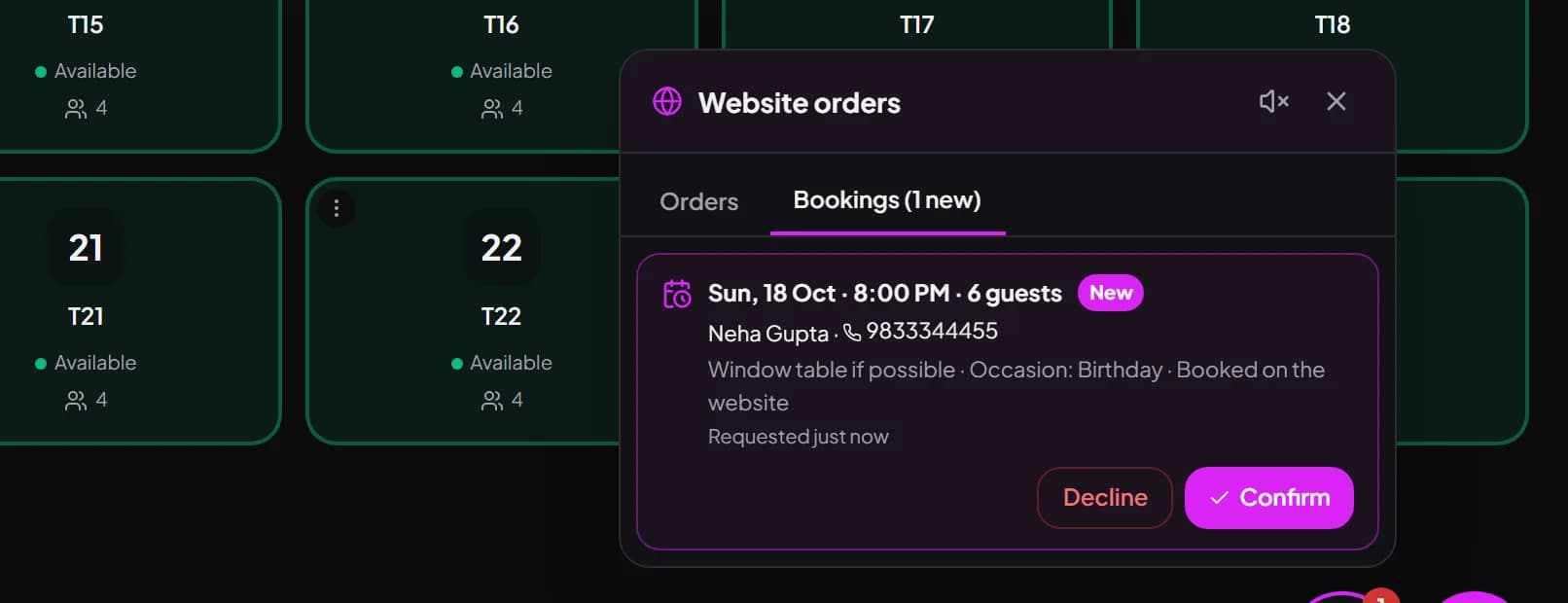
If your website also takes table bookings, they appear in a Bookings tab in the same inbox: date, time, number of guests, the occasion and any note — “birthday, window table if possible”. Staff confirm or decline with a reason, just like orders. You can read more about how customers book on our page about restaurant websites with online ordering.
Keeping it straight
Website orders, QR orders and delivery-app orders — which is which
Most restaurants now take orders from three or four places at once, and staff get confused when they all look the same. In Billzova each kind has its own clear place, so nobody has to ask “where did this one come from?”
Website orders come from customers who are not in your restaurant — ordering from home or the office for pickup or delivery through your own website. They arrive in the globe inbox described on this page, carry the customer's name, phone and address, and cost you no commission.
QR table orders come from guests already sitting at a table, who scan the code on the table and order from their phone. They have their own bell, are tied to a table number, and add to that table's running bill. Read more on the QR table ordering page.
Delivery-app orders from the big food apps are still handled on the apps' own tablets or partner apps today, and you enter them in the POS the way you already do. Billzova does not connect to those apps — we would rather say that plainly than have you find out after signing up.
Keeping the three apart matters for more than tidiness. Each website order is clearly marked in the POS and its order note, so you can count how many came direct each week — the number that tells you whether moving regulars to your website is working. See the maths of zero-commission ordering.
It keeps ringing until someone answers
A new website order rings and keeps ringing while it waits — its own three-note chime on the web POS and Windows app, sound plus vibration on Android. Pass the restaurant's reminder time and the button turns amber, the sound speeds up, and the card shows exactly how long it has waited and when it will auto-cancel.
- Badge count on every POS screen
- Separate button from the QR table bell
- Amber warning after the reminder time
- Auto-cancel with a clear message to the customer
Ready, out for delivery, delivered — one tap each
Pickup orders show "Bill in Running Orders" once ready. Delivery orders get an "Out for delivery" button that asks for the rider's name and mobile number and shares them with the customer, then a "Delivered" button to close it.
- Status the customer can follow
- Rider name and number shared with the customer
- Last rider remembered for the next order
- Customer phone is one tap to call
The owner gets an email for every new order
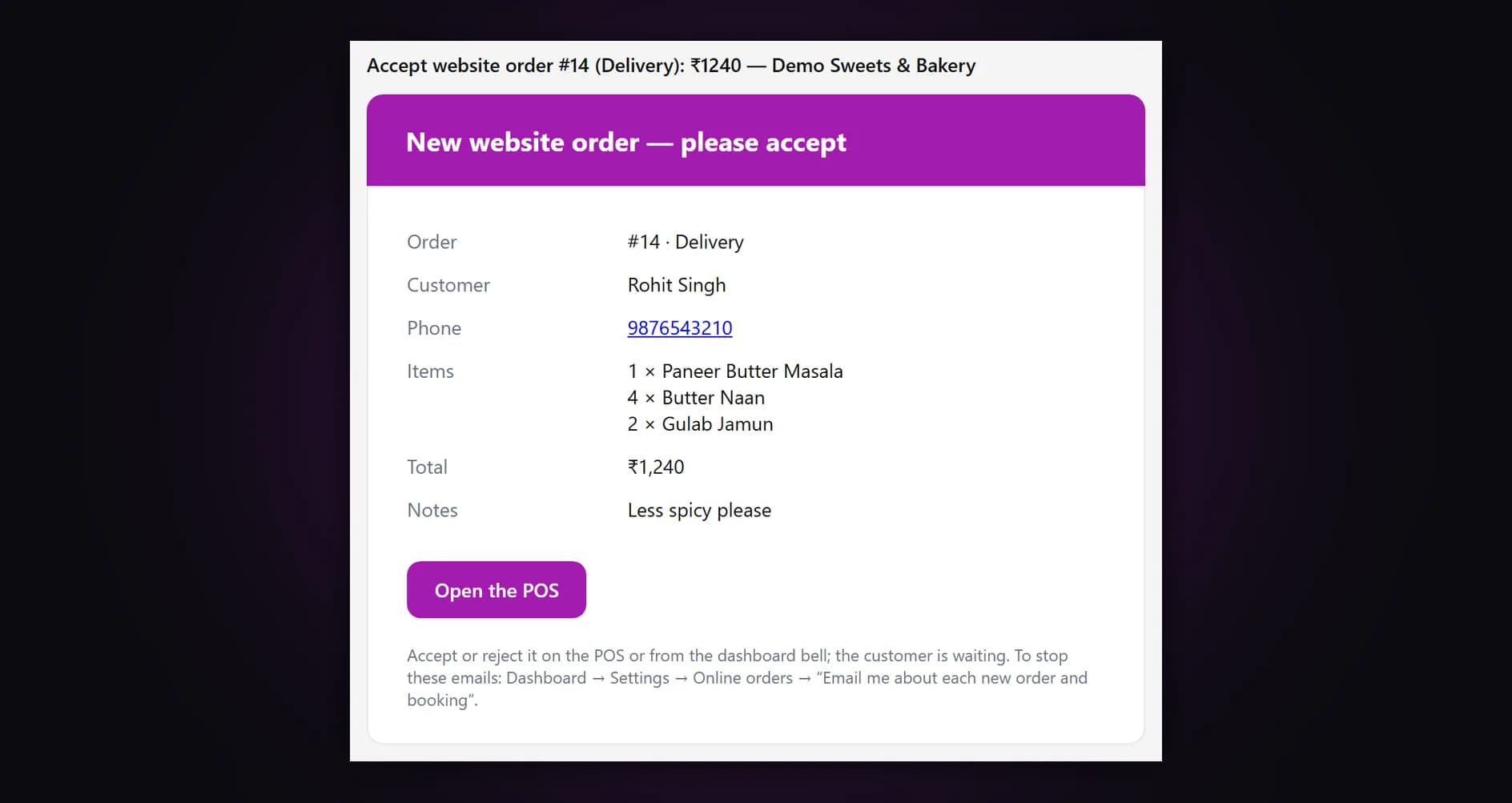
Away from the counter? Every new website order is emailed to you with the order number, pickup or delivery, the items, the total and the customer's note, with a button that opens the POS. If the dashboard is open on your laptop or phone, it chimes and shows a pop-up too.
- Email to the restaurant and the owner login
- Items, total and note in the email
- Chime + pop-up on the dashboard
- Switch it off in Settings → Online orders
In the product
From the inbox to the bill
Real screens from the Billzova POS and dashboard.
Compared
Website orders without and with the POS inbox
Orders arriving by email, call or chat
- Someone has to keep checking the phone
- Order typed again into billing
- Customer not told if it was accepted
- Cancellations with no reason given
- Delivery sales tracked in a notebook
Orders in the Billzova POS inbox
- Rings on every POS screen until handled
- Items, notes and address already in the order
- Accept in one tap; customer sees the status
- Reject with a reason the customer sees
- Same bill, reports and day close as counter sales
FAQ
Online order management — questions from restaurant teams
Where do website orders show up in the Billzova POS?▾
Which devices get website orders?▾
What happens if nobody accepts an order?▾
Can orders be accepted automatically?▾
Does the customer see why an order was rejected?▾
How does the customer know who is delivering?▾
How are website orders billed?▾
Will my website take orders when the restaurant is closed?▾
Can I pause website orders during a rush?▾
Can the kitchen staff account accept website orders?▾
Do customers pay online?▾
Can I limit where we deliver?▾
Does the owner get told about new website orders?▾
One inbox for every order your website brings in.
Billzova POS from ₹399 a month. Website orders work on web, Windows and Android — no extra device to buy.