QSR POS software & fast food billing
built for the lunch-hour queue.
Open straight on a takeaway bill, find any item by name or short code, print a token on the KOT, take UPI, cash or card — and keep billing on the Windows app even when the internet drops. ₹399/month or ₹3,999/year including GST, 30-day free trial.
The struggle
Sound familiar?
The queue grows while the cashier scrolls
Hunting for "veg burger" across ten categories with a line at the counter is how walk-outs happen.
Combos rung up item by item
Burger, fries and drink billed separately, then a discount worked out by hand — slow, and the total is different every time.
Hand-written tokens and shouted orders
The kitchen loses track of what's next and customers pick up the wrong bag.
The internet drops at 1:30 pm
A cloud-only billing system that freezes mid-rush stops the whole counter.
Choosing a fast food billing system
What a QSR actually needs from its POS
A dine-in restaurant's POS is built around tables: open a table, add rounds, print the bill at the end. A quick service counter works the other way round — the customer orders, pays and waits, and the next customer is already in line. So the things that matter are different.
Finding items fast. A QSR menu might have 60 to 200 items. Scrolling categories doesn't scale; typing two letters does. That's why short codes and keyboard search matter more at a counter than pretty pictures.
One price for a combo. Combos drive QSR average bill value, and they need to bill at a fixed price with the customer's choices recorded — not as three items and a manual discount.
A token and a ticket. The customer needs a number to listen for; the kitchen needs a clear ticket with that number on it. Printed KOTs are still the norm in Indian kitchens, and a kitchen display screen helps when the counter and the kitchen can't see each other.
Billing that survives the internet. Rush hour is exactly when shared Wi-Fi and mobile data are at their worst. A billing app that keeps printing bills offline protects the busiest hour of your day.
At the counter
One takeaway order, start to finish
The bill is already open
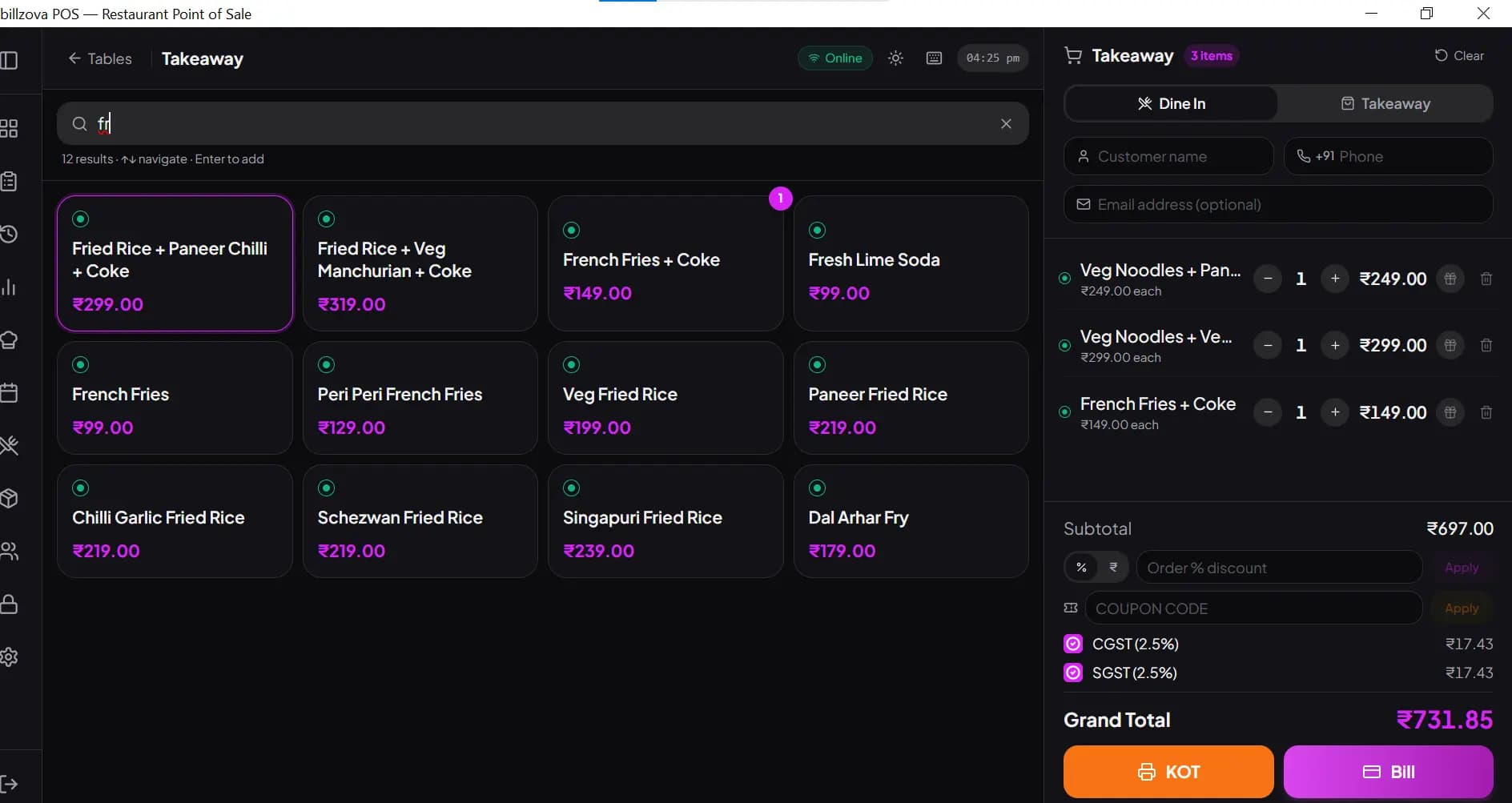
With the Quick service business type, the billing app opens on a new takeaway bill — no table to pick.
Type, Enter, repeat
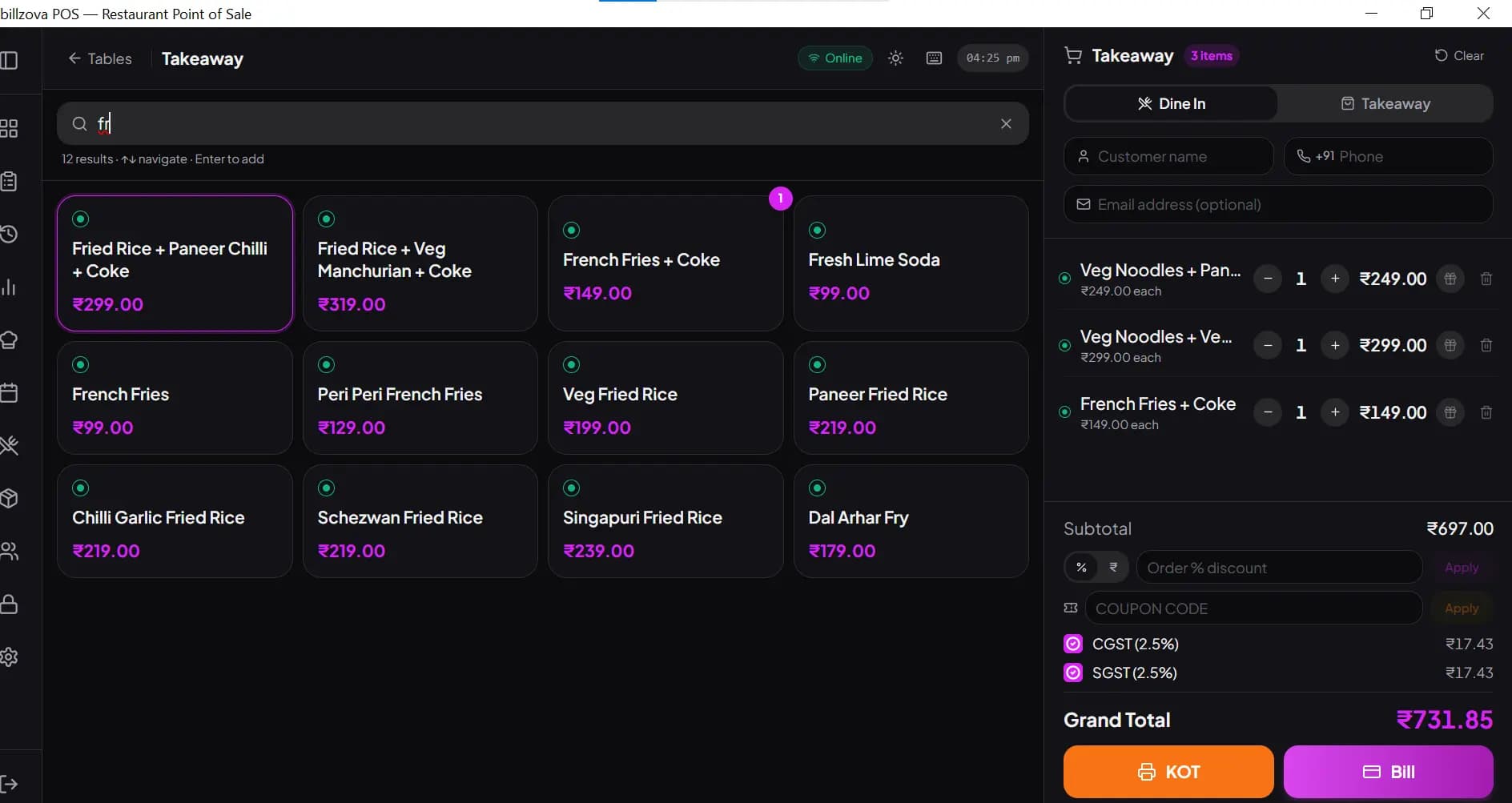
The cashier types "VB" + Enter for a veg burger, taps the burger combo and picks Coke and fries in the choice picker. Enter on an empty search adds one more of the last item.
KOT with a token
Alt+K sends the KOT. It prints in the kitchen with the token number in large type and shows up on the kitchen display, if you use one.
Pay and print
Alt+B opens payment: U for UPI, C for cash, K for card, or split the amount. Confirm and the GST bill prints with the same token number. Add the customer's phone to send the bill on WhatsApp.
Ready, call the token
The kitchen marks the order Ready on the display, the counter calls the token, and the customer collects.
Set the right expectations
Is billzova the right QSR POS for you?
billzova suits single-outlet and small multi-outlet quick service counters. Here's the honest scope.
A good fit if you need
- Fast takeaway billing with short codes and keyboard shortcuts
- Token numbers on the KOT and bill
- Combos with drink / side choices and paid extras
- A kitchen printer, a kitchen display, or both
- GST bills, UPI / cash / card / split payments
- Billing that keeps working offline (Windows app)
- More than one outlet — on request, under a Custom plan
Not available today
- Automatic Swiggy / Zomato order import
- Routing KOTs to separate kitchen stations (grill, fryer, drinks)
- A customer-facing "now serving" token screen
- Automatic combo detection from separately-billed items
- Self-order kiosks
Running a chain? Multi-branch is enabled on request: menu items can be shared by every outlet or kept to one branch, and staff linked to a branch see that branch's data. Tell us your outlet count on the contact page or book a demo.
Search, Enter, next item
Type part of an item name or its short code and press Enter to add it — "PT" + Enter for Paneer Tikka. Arrow keys move through results, Enter on an empty search adds the last item again, and keyboard shortcuts open the KOT, the bill and each payment mode without touching the mouse. Touch screens work too.
- Search by name or short code; Enter adds the item
- A USB / Bluetooth barcode scanner can type into the same search box
- Enter on an empty search repeats the last item
- Shortcuts: F2 search, Alt+K KOT, Alt+B bill
- On the payment screen: C cash, U UPI, K card
Combo meals at a fixed price — with choices
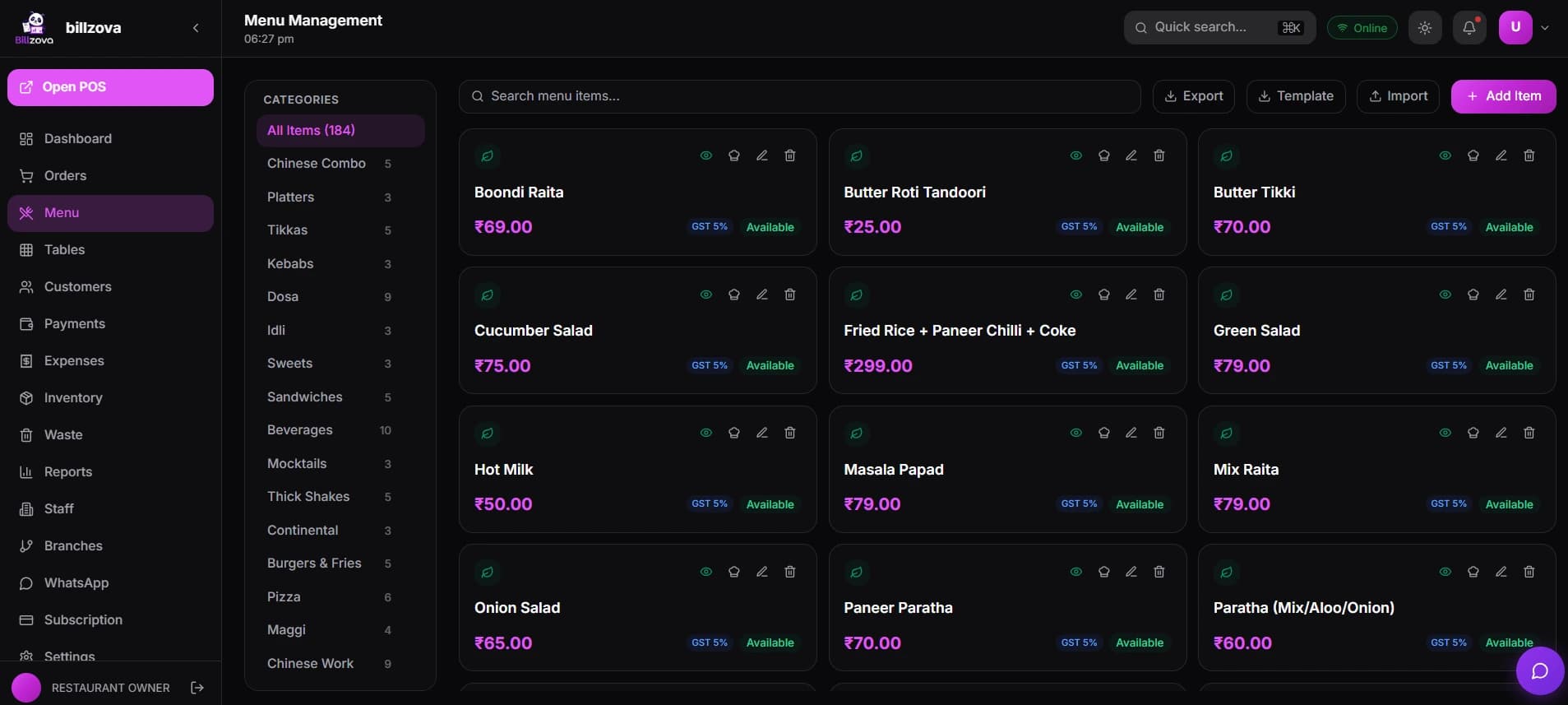
Create each combo as its own menu item at the combo price, then attach choice groups: pick a drink, pick a side, add cheese for ₹20. Set a group to "ask when adding" and the picker opens the moment the cashier taps the combo. Sizes (Regular / Large, Half / Full) work the same way.
- Combo = one menu item at one price
- Choice and add-on groups, with optional prices
- "Ask when adding" opens the picker automatically
- Sizes like Regular / Large or Half / Full
- Choices print with the item on the KOT and bill
Every order gets a token and a ticket
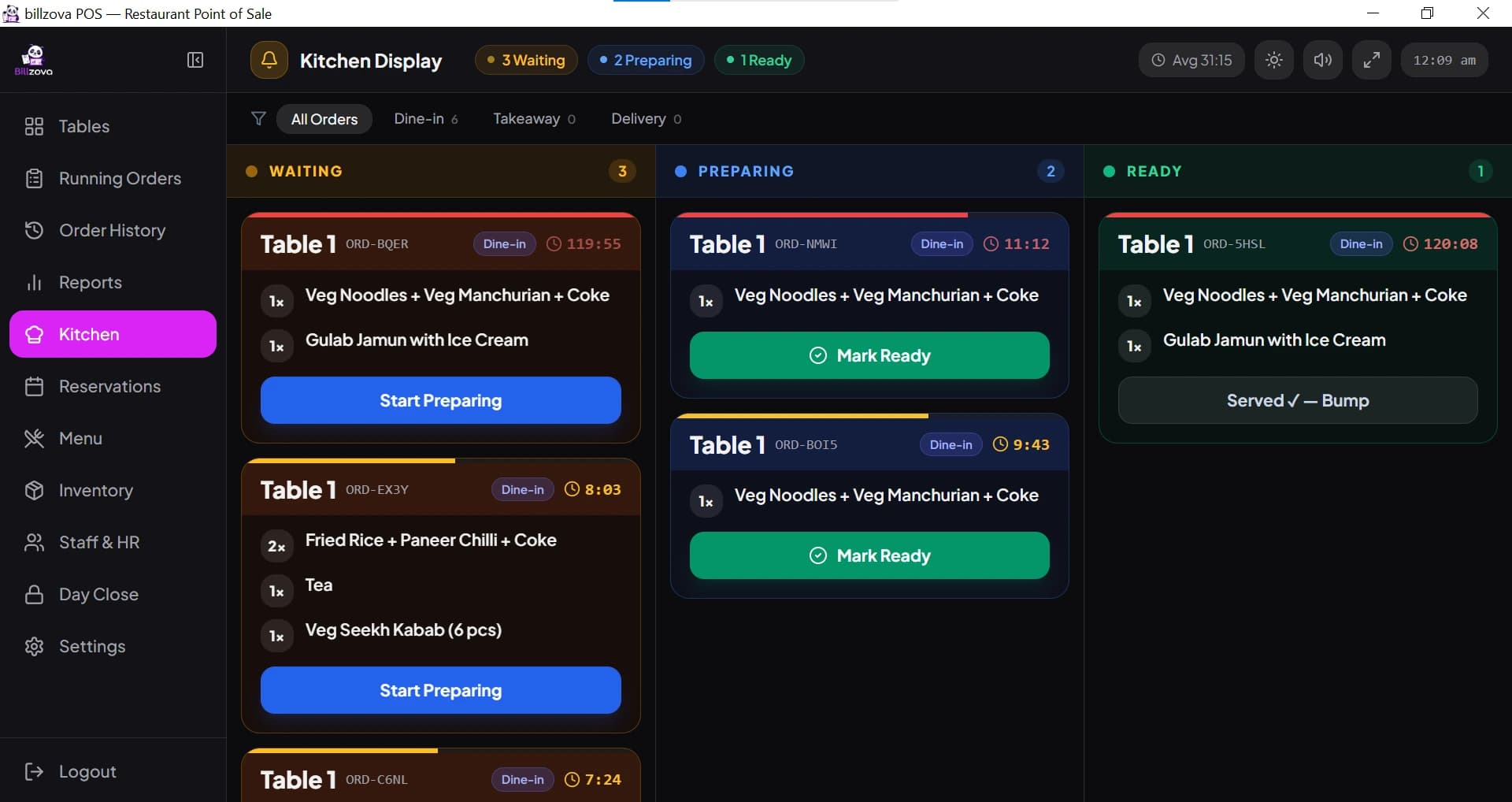
With token numbers on, each takeaway order gets the next number for the day, printed large on the KOT and on the bill. The kitchen gets the KOT on its printer and, if you use one, on the kitchen display — where cooks move each order from Waiting to Preparing to Ready.
- Daily token numbers, restarting after midnight
- Token printed on the KOT and the customer's bill
- KOT to the kitchen printer from the Windows app
- Kitchen display: Waiting → Preparing → Ready
- Only new items go to the kitchen when an order is added to
UPI, cash, card — or split between them
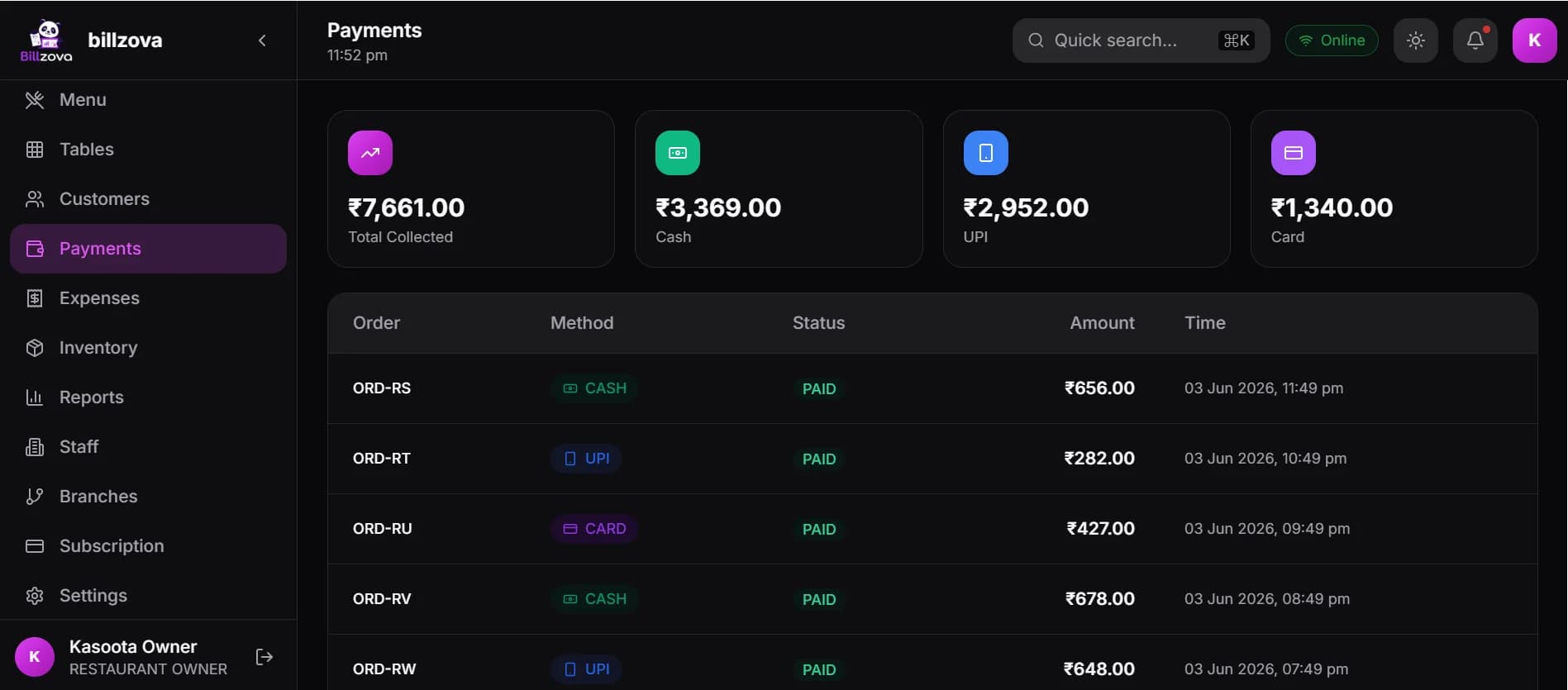
Settle with cash, UPI or card in one tap, or split one bill across modes when two friends pay differently. Enter the cash handed over and the change is shown. At the end of the day, the payment-mode breakdown tells you what should be in the drawer and what should be in the bank.
- Cash, UPI and card
- Split one bill across payment modes
- Change to return shown for cash
- Payment-mode totals in reports and day close
Keeps billing when the internet doesn't
The billzova Windows desktop app bills, prints the GST bill and prints the KOT without internet. Bills made offline sync to the dashboard when the connection comes back, so your reports stay complete.
- Billing and printing continue offline
- Bills sync to the dashboard on reconnect
- Free Windows installer
- Android app for billing from a phone or tablet
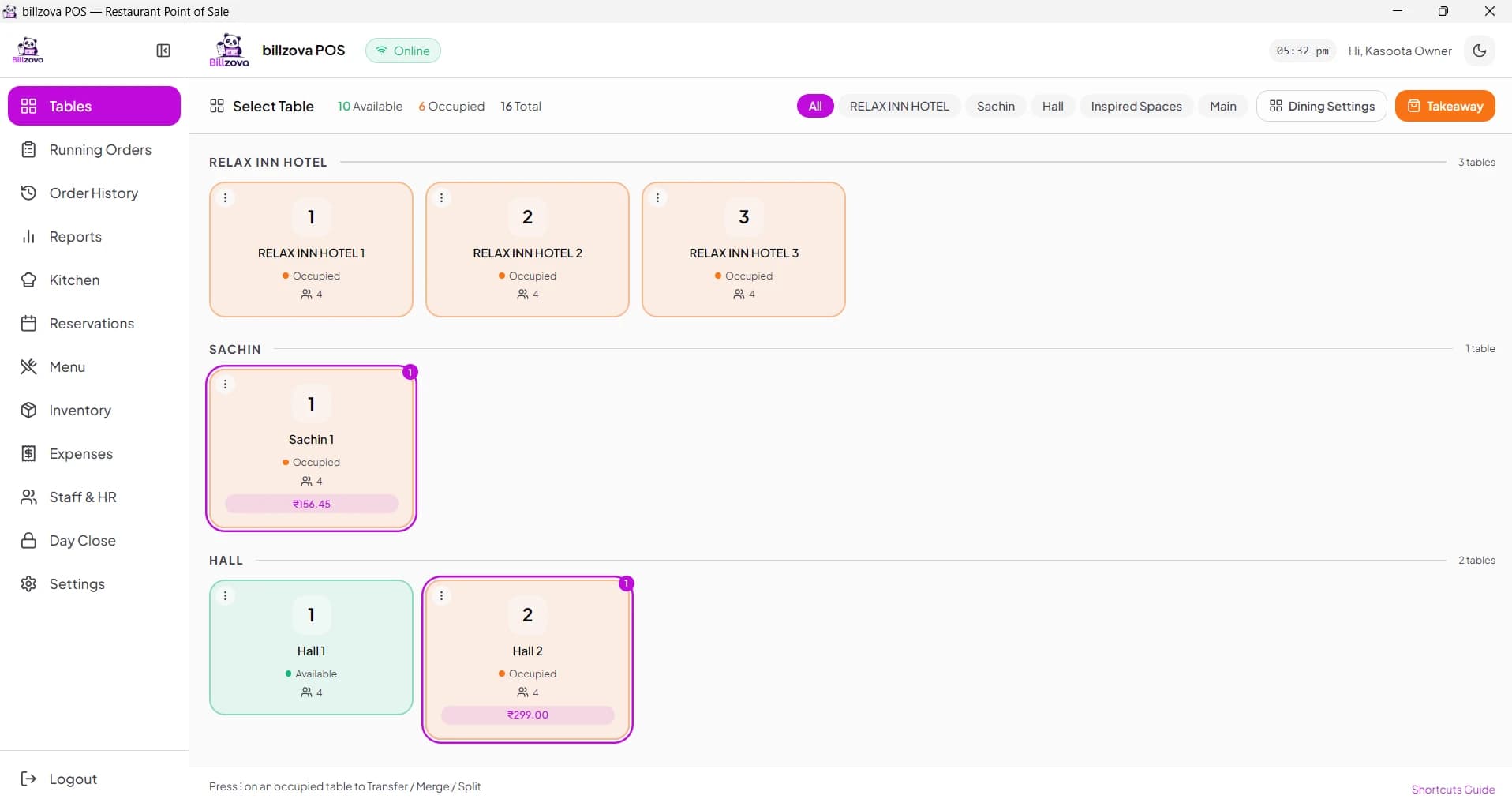
Know what sold, and how it was paid
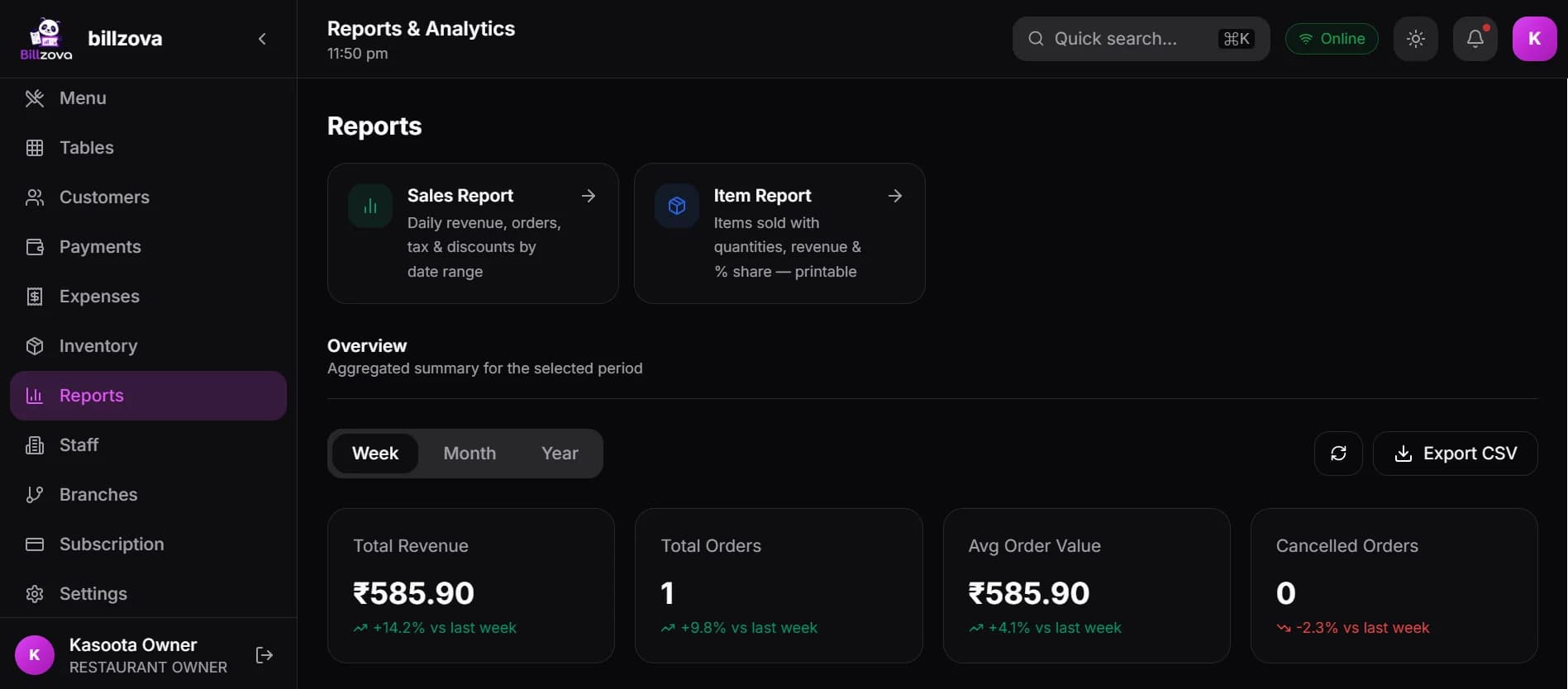
Daily sales, top-selling items, item-wise sales and payment-mode split in the dashboard, plus a day-close report for the counter. GSTR-1 and GSTR-3B summaries are ready for your accountant, and reports export to Excel.
- Daily sales and average bill value
- Top items and item-wise sales
- Payment-mode breakdown
- Day close / Z report
- GSTR-1 and GSTR-3B summaries, Excel export
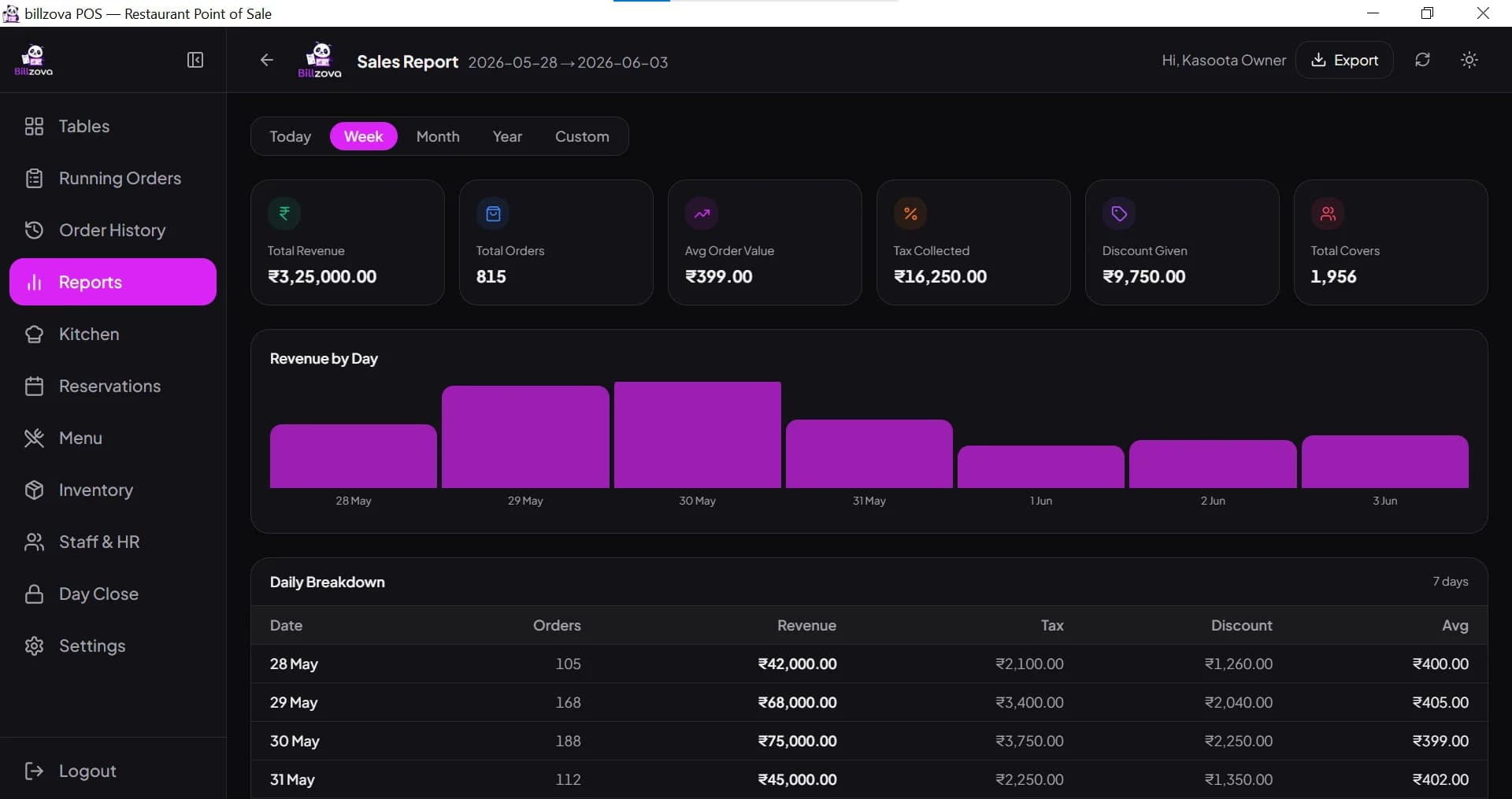
In the product
See every screen
Real product screenshots — not stock illustrations.
Compared
Old counter setup vs billzova
Old counter setup
- Scrolling categories to find an item
- Combos billed item by item, discount worked out by hand
- Hand-written tokens
- Billing stops when the internet drops
- Cash and UPI totals reconciled on paper
billzova QSR
- Name or short code + Enter
- Combo billed as one item with its choices
- Token on the KOT and the bill
- Windows app keeps billing offline
- Payment-mode totals at day close
FAQ
Frequently asked questions
What is QSR POS software?▾
Can billzova open straight on a takeaway bill instead of a table plan?▾
How do token numbers work?▾
Does billzova support combo meals?▾
Does it have a kitchen display?▾
Will billing stop if the internet goes down during the rush?▾
Is billzova integrated with Swiggy or Zomato?▾
Can I run several outlets on billzova?▾
Start billing in 10 minutes.
Full access to every feature. Cancel anytime. ₹399/month after your free trial.